

Introduction
This guide will walk you through everything you need to know to create and manage your applications in Bokio developer portal. This portal provides the necessary tools to help developers integrate their applications with Bokio. The registration process involves providing essential details about the application, such as its name, description, and the specific permissions it requires.
Accessing the Developer Portal
Navigate to Bokio Developer Portal, where you will find two options to get started:
Sign In: If you already have a Bokio account, use your existing credentials to log in.
Sign Up: If you are new to the Bokio ecosystem, you can create your Bokio account directly from here to begin your developer journey.
Home Page (Dashboard)
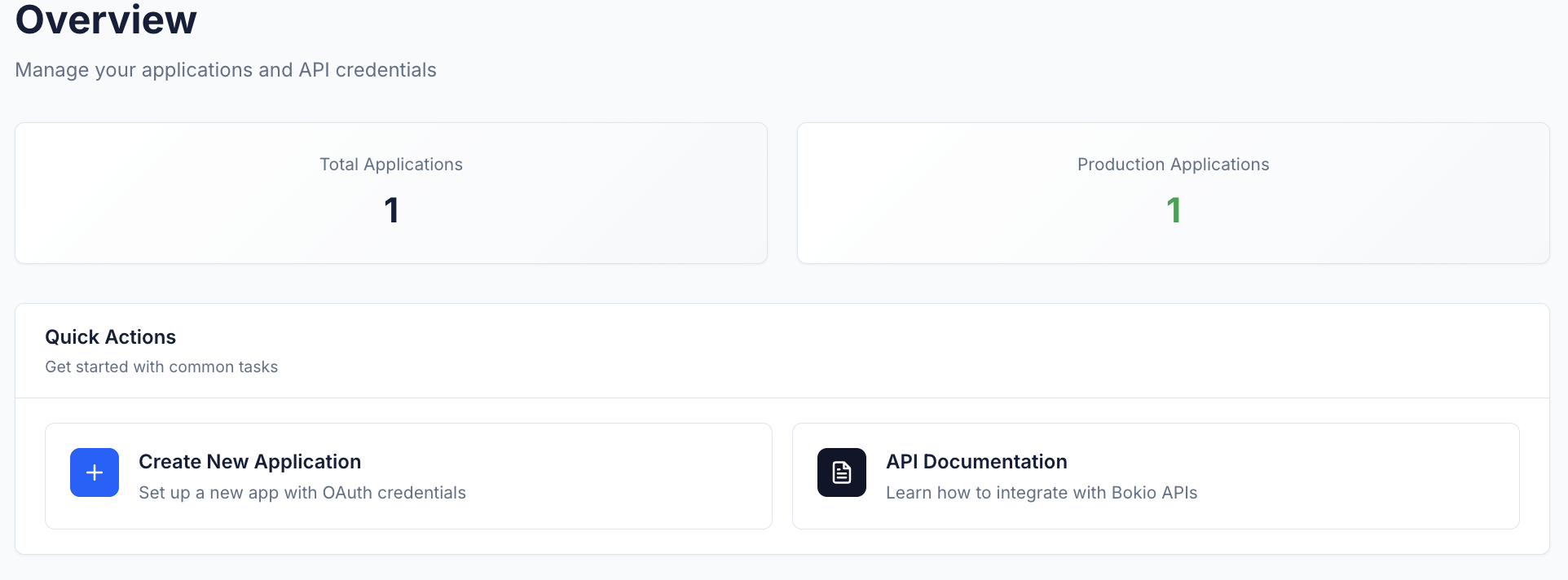
The dashboard provides a complete overview of your applications and their status, whether in Test or Production mode. You can quickly see how many apps you have created, access existing apps for editing, or start a new integration by clicking Create New Application. The dashboard also offers quick access to developer documentation, including API references, and integration guides.
Creating a New Application
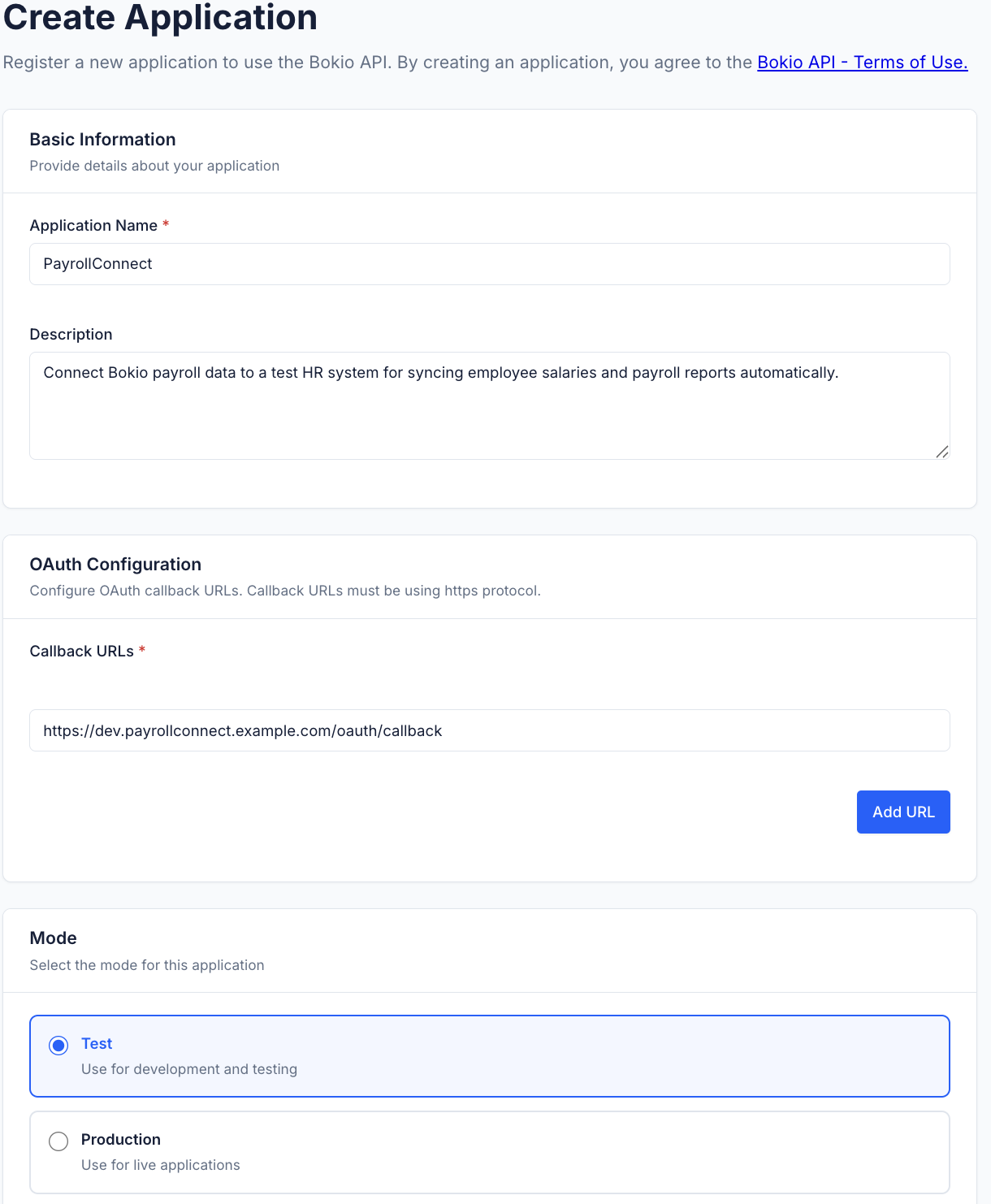
Click Create New Application and fill in the required details:
- Application Name – Provide a descriptive name that clearly reflects your app's purpose.
- Description – Add a concise explanation of what the app does.
- Callback URL – Enter the URL that Bokio will redirect to after authentication.
- Application Mode – Choose one of the following:
- Test mode – For development and testing.
- Production mode – For live, user-facing apps.
- Click Save to register the application.
Tips:
- Choose a meaningful name and description to help users understand your integration.
- Ensure your callback URL is secure (HTTPS) and accessible from Bokio servers.
Viewing and Editing Applications
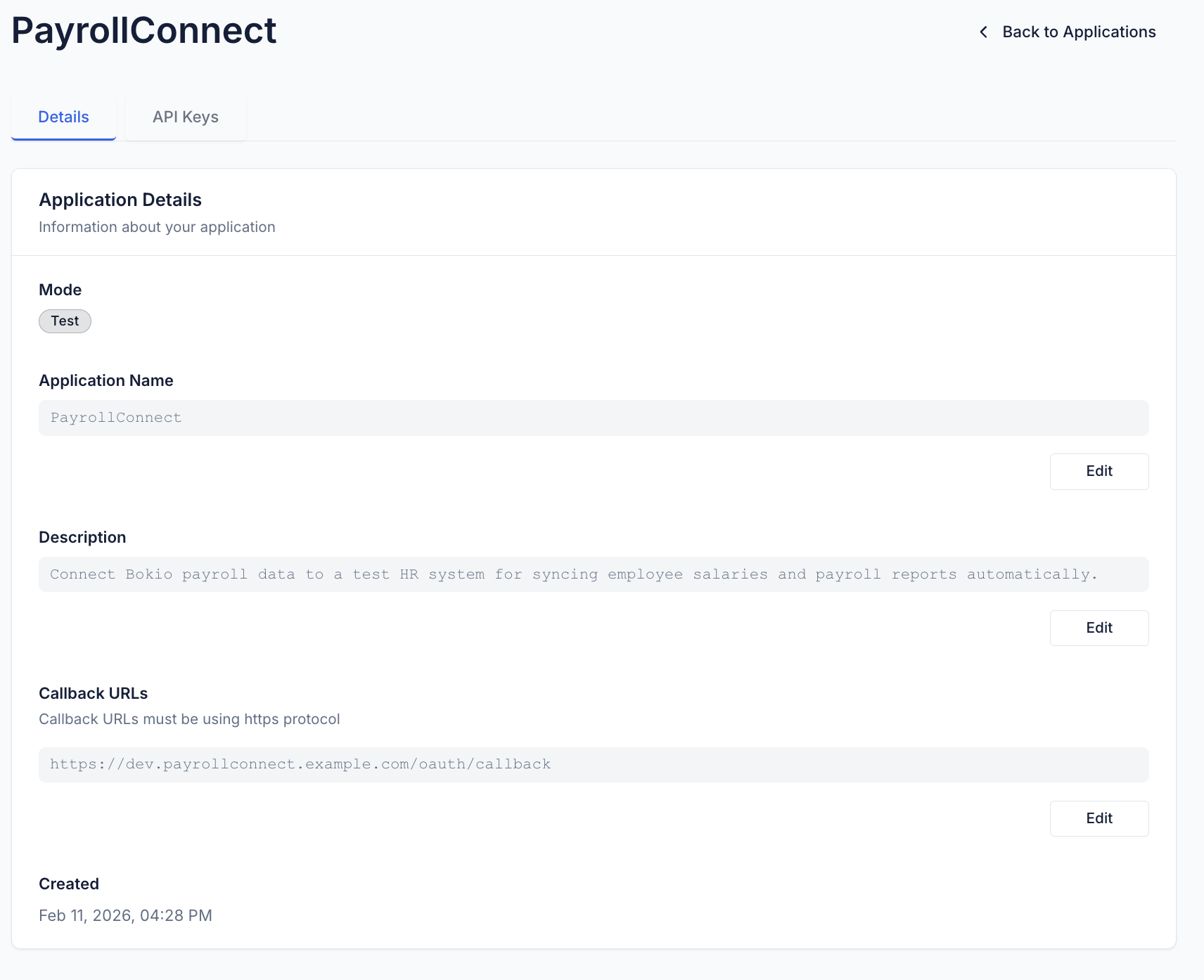
After creating your application, you can click on it from the dashboard to view detailed information. Here, you have the option to edit the app’s name, description, callback URL. You can also manage API credentials and other settings. It’s strongly recommended to test your app thoroughly in Test mode before switching it to Production, to ensure that everything works smoothly.
Invite a user to your developer account
- Go to Settings in the left menu.
- Scroll down to the Users section.
- Click the Invite user button on the right side of the screen.
- In the dialog that appears, enter the user's email address in the Email field.
- Click the role dropdown and select one of the following roles:
- Super admin – Full access and control over the account
- Admin – Administrative access
- Developer – Standard developer access
- Click Send invite. The user will receive an email to join your developer account.
Developer Tips & Best Practices
- Always test integrations in Test mode before creating it in Production mode.
- Never mix credentials for development with production credentials.
- Keep your documentation clear and user-friendly.
- Use HTTPS for all callback URLs and protect credentials.
- Monitor API usage and errors to ensure reliability, and update your app as Bokio APIs evolve or new features are released.
For additional help, contact Bokio Developer Support via support link, providing your app details and any error logs.
Updated 4 months ago
What’s Next
Learn more about publishing your application in the Bokio marketplace here.